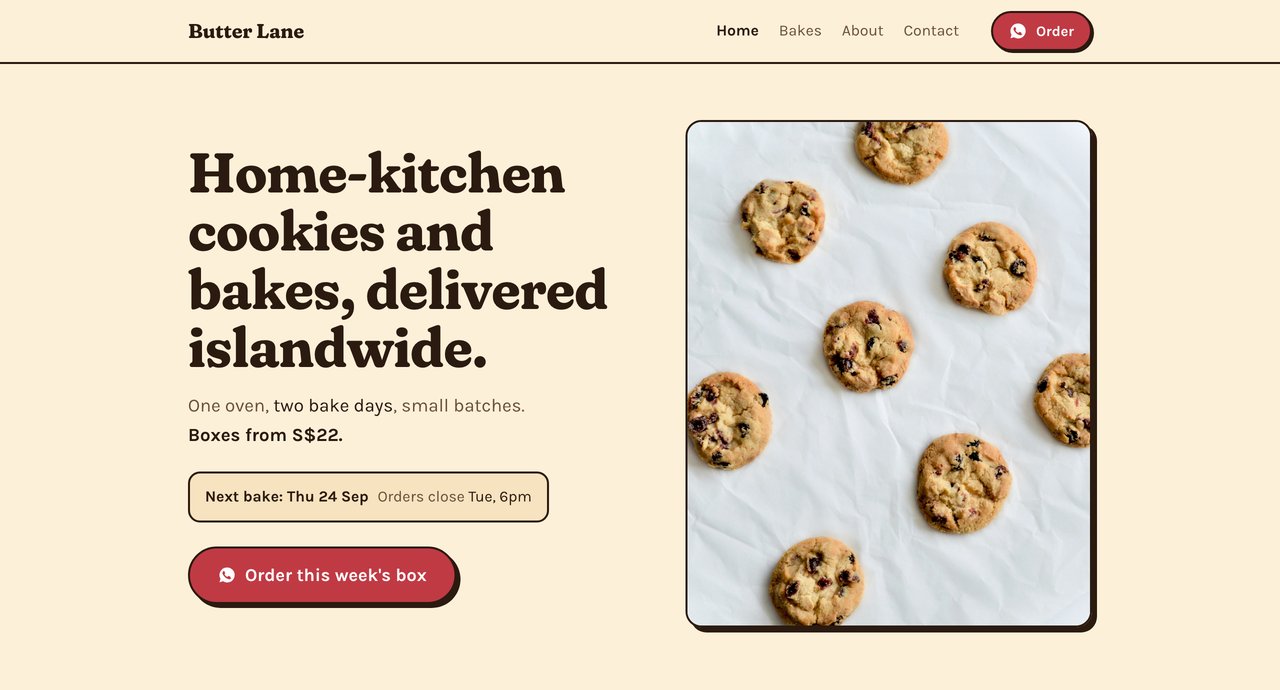
Meet Claude
Five minutes of context before we click anything. What this thing is, and where it fits next to the other AI tools you've heard of.
What is Claude?
Claude is an AI assistant made by a company called Anthropic. You talk to it in normal sentences, the same way you'd message a very capable friend, and it writes, plans, explains and builds things for you.
The message you type is called a prompt. There's no special language to learn. A clear, specific prompt gets a better result, which is why this page gives you the prompts ready-made.
- It's good at words: website copy, captions, emails, menus.
- It can make real files: in the Code tab, it creates a working website inside a folder on your laptop.
- It asks before acting: you approve the important steps, like putting your site online.
Clear: "plan a 4-page website for my home bakery"
Claude and the other AI tools
You've probably heard of ChatGPT or Gemini. They're the same kind of tool as Claude, made by different companies. All of them chat. What's different is where they can work and what they can make.
Inside Claude there are three "rooms". Same brain, different room, depending on the job:
We spend almost all of today in Code. Don't let the name scare you: you never write code yourself. You type normal sentences and Claude writes the code.
Install
Get the app, flip one switch, and set your privacy. Do these together and don't move on until every box in the ready check is ticked. (The GitHub and Vercel accounts come later, in Part 4.)
Install the Claude desktop app
Go to claude.ai/download and pick your computer. The website version of Claude can't reach the files on your laptop, so for building a site you need the desktop app.
Mac (macOS 11 or later)
- Download the Mac version
- Open the
.dmgfile and drag Claude into Applications - Open Claude and sign in
Windows (10 or later)
- Download the Windows version
- Run the installer and follow the prompts
- Open Claude from the Start menu and sign in
Once you're in, check two things: you're on the Pro plan or above (compare plans at claude.com/pricing), and you can see a Code tab next to Chat.
Switch on file creation
This lets Claude actually create files, instead of only talking about them.
- Open Settings, then Capabilities
- Turn on Code execution and file creation
Keep your data safe
You're about to give Claude your business files. While you're in Settings, take two minutes to decide what Claude can keep and learn from.
- Open Settings, then Privacy
- Find Help improve Claude. When it's on, your chats may be used to train future versions of Claude. It's your choice: turn it off if you'd rather they weren't.
- You can delete any chat from your history at any time
House rules for the rest of this guide and beyond:
- Never paste passwords, bank or card numbers, or NRIC and passport numbers into Claude.
- Customer details are personal data. Don't paste customer names, phone numbers or addresses. In Singapore, the PDPA covers how you handle them.
- Only put in the site folder what you'd show a stranger. Anything in that folder can end up on your public website.
- Read before you click Allow. The Code tab asks before doing things. Not sure? Type "What does this do?" first.
- Download only from the real sites: claude.ai, github.com, vercel.com.
Ready check
Tick these off. Your ticks are saved in this browser.
Build the example
We build a real site for a practice business, one small prompt at a time. Plan, words, look, menu, then the whole site. Every prompt works for your own business too: just change the yellow parts.
Practice business
Butter Lane
- What
- Small-batch cookies and bakes from a home kitchen in Singapore. $12–28 a box.
- Who buys
- People aged 25–45, office workers and parents. Gifts, office treats, weekend cravings. Most find us on Instagram.
- Voice
- Warm, homemade, a little cheeky. Like a friend who bakes. Never corporate.
- Orders
- Through WhatsApp and Instagram DMs.
- The job
- A 4-page website: Home, About, Menu, Contact & order.
Make the folder and point Claude at it
Here's the part nobody tells you: Claude Code works inside one folder. It reads what's in there, and everything it makes lands in there.
- Open your home folder. Mac: in Finder, press Shift + Cmd + H. Windows: in File Explorer, type
%USERPROFILE%in the address bar and press Enter. - Make a folder called
Websites. Every site you build from now on goes in here. - Inside
Websites, make a folder called butter-lane-site. Lowercase, dashes, no spaces. - Inside that, make a folder called
photosand drop in 5–10 photos of your products. No photos yet? Use the starter photo pack. - Open Claude, go to the Code tab, and choose the butter-lane-site folder
Only three things are yours to put in. Everything else, Claude makes:
You put in — three things
brand-guide.md
Who you are and how you soundmenu.md
What you sell, and the pricesphotos/
A folder with 5–10 pictures
Got real customer reviews? Add reviews.md too. Not essential.
Claude adds the rest
products.md
Your menu in one editable file · step 3.5index.htmland friends
The website itself · step 3.6
You never open these. Claude writes and changes them for you.
No brand guide or menu files yet? Let Claude draft them. Paste this into the Code tab:
I'm building a website for Butter Lane, a small home bakery in Singapore. Create three short starter files in this folder:

1. brand-guide.md: what we sell, who we sell to, our voice (warm, homemade, a little cheeky) and words we never use.
2. menu.md: 8 bakes, each with a name, price and a one-line description.
3. reviews.md: 8 short customer reviews, clearly marked SAMPLE at the top.

Ask me questions first if anything important is missing.
Optional: check Claude is looking in the right place.
What files can you see in this folder? List them, with one line on what each one is for.
Windows: C:\Users\yourname\Websites
# Cookies
- Choc chip · $12 a box
Plan before you build
It's much cheaper to argue with a plan than with a finished website. Ask for a one-page plan and wait before building.
Before building anything, plan my bakery's website. Use brand-guide.md and menu.md in this folder.

1. Propose the pages. I'm thinking home, about, menu, contact & order. Push back if that's wrong for a home bakery.
2. The homepage: what must a first-time visitor see on the very first screen?
3. Where do customer reviews earn their place?

Keep the plan to one page. Wait for my OK before building.
Read the plan and reply in plain words, like "Put the menu higher" or "Less about me, more about the bakes." When you're happy, say "OK, go ahead."
Write the homepage words
Words first, design second. Good words make even a simple design feel professional.
Write the homepage copy and save it as homepage-copy.md.

- A hero line that says what we sell and for whom: cookies and bakes from a home kitchen, delivered across Singapore. Eight words or fewer.
- Three short sections: this week's bakes · how ordering works · who's baking
- Two real quotes from reviews.md
- One clear call to action: "Order this week's box"

Use the voice in brand-guide.md. No template words. Nothing you'd read on any other bakery's site.
Choose the look from your photos
Your colours should come from your own products, not from a trend. Ask to see options before Claude styles everything.
Propose the look for the website: a five-colour palette drawn from the photos in the photos folder, one display font and one body font.

It should feel warm and friendly, easy to read on a phone. Avoid anything luxury-minimal-beige. It's cookies, not couture.

Show me the colour swatches and one sample section before styling the whole site.
Put your menu in one file
Your site shouldn't break the day you change a price. So the menu lives in one simple file, and the Menu page reads from it. You'll use this again in step 4.2.
Create products.md from menu.md. For each item: name, price, one-line description, which photo, and available: yes/no.

Build the menu page to read from products.md, so when I edit that file and redeploy, the site updates.

Mark two items as available: no, so I can see how sold-out looks.
One prompt, whole site
Everything is ready. This is the big one. It can take a few minutes, and Claude may ask you to approve some steps along the way: read what it asks and click allow.
First, get your two order links ready. Customers tap a button on your site and land straight in a chat with you.
WhatsApp link maker
https://wa.me/6591234567
Instagram link: https://instagram.com/ plus your username, like https://instagram.com/butterlane.sg
Build my bakery's website in this folder. Use brand-guide.md, menu.md, reviews.md, products.md, homepage-copy.md and the photos folder. Don't invent facts. If something is missing, ask me.

Pages:
1. Home: hero, this week's bakes, two review quotes, one order button
2. About: who's baking and why, short
3. Menu: reads from products.md, photo-first
4. Contact & order: an "Order on WhatsApp" button linking to https://wa.me/6591234567, an Instagram link to https://instagram.com/butterlane.sg, and delivery info. Put the WhatsApp button on the homepage too.

Design: the look we agreed. Big type, generous space, our photos doing the talking. Mobile first, because most of my customers are on their phones.

Keep it simple to host: plain HTML, CSS and JavaScript, no build tools, with index.html at the top of this folder. Save everything as website files here.
Look at it and refine
Right now the site only exists on your laptop. Ask Claude to open a preview:
Open the website in my browser so I can see it.
Then fix things in plain words, one or two at a time. Tap any of these to copy it:
Put it online
Your site works on your laptop. To put it on the internet you need two free accounts, GitHub and Vercel. Claude does the fiddly parts. You do the sign-ups and the clicking.
How the pieces connect
Three places, one path. Knowing this picture makes every step below make sense.
After today, changing your site is one message to Claude. It updates the files, sends them to GitHub, and Vercel puts the new version online within about a minute.
Get the folder ready for hosting
A few things that work on your laptop can break online. Let Claude check them first. Stay in the Code tab, in your site folder:
Get this website ready to put on GitHub and host on Vercel:

1. The homepage must be called index.html and sit at the top level of this folder, not inside another folder.
2. The menu page must still load products.md when the site is online, not only on my laptop.
3. Keep it plain HTML, CSS and JavaScript with no build step. If anything needs one, tell me and simplify it.
4. Photo file names should be lowercase with no spaces, and every link to a photo must match the name exactly.
5. Make any photo over 1 MB smaller, so the site loads fast on phones.
6. Add a .gitignore file that leaves out system files like .DS_Store.

Then tell me in simple words what you changed.
After it finishes, open the preview one more time (step 3.7) and click through every page.
Create a GitHub account
This is the one part Claude can't do for you: the account is yours.
- Go to github.com/signup
- Enter your email and create a password
- Choose a username. It shows up publicly, so keep it clean: butterlane-sg
- Complete the verification puzzle and type in the code GitHub emails you
- If it asks about plans, choose Free and skip the questions
Let Claude put the folder on GitHub
One prompt. Claude checks what's installed, helps you sign in, creates a private repository and sends your files up.
Put this folder on GitHub for me. I've never used GitHub before, so keep it simple.

1. Check whether git and the GitHub CLI (gh) are installed. If either is missing, tell me the easiest way to install it on my computer, then wait for me.
2. Sign me in with gh auth login. Tell me exactly what to click and where to paste the code.
3. Create a new PRIVATE repository called butter-lane-site and push everything in this folder to it.
4. Give me the link to the repository at the end.

Before each command, say in one plain sentence what it does. Stop and ask me if anything needs a password.
- Paste the prompt and approve each step Claude asks about
- When the sign-in starts, a browser window opens. Paste the code Claude shows you and click Authorize.
- Check it worked: on github.com, click your profile picture, then Your repositories. Open butter-lane-site and make sure
index.htmlis in the list, not inside another folder.
Create a Vercel account with GitHub
- Go to vercel.com/signup
- Choose the Hobby plan, type your name, and continue
- Click Continue with GitHub. This links the two accounts.
- In the GitHub window, click Authorize Vercel
- You land on your Vercel dashboard. Leave this tab open.
Import the repo and deploy
This is the moment it goes live. It's called deploying.
- On the Vercel dashboard, click Add New… and choose Project
- Under Import Git Repository, find butter-lane-site and click Import
- Not in the list? Click Adjust GitHub App Permissions, choose Only select repositories, pick your repo, click Install or Save, then come back
- Project Name: this becomes your address. butter-lane gives
butter-lane.vercel.app. If someone already has it, Vercel adds a few extra letters. - Framework Preset: choose Other. Root Directory: leave as
./. Leave the build settings empty. - Click Deploy and wait about a minute
- When you see the congratulations screen, go to the dashboard and click Visit
- Open the link on your phone, then send it to one real person
If something looks wrong, find your problem here:
index.html isn't at the top of the repo. Use the prompt below and Claude will fix and re-send it.products.md online. Use the prompt below and describe it.My site is deployed on Vercel from GitHub, but something is wrong: the menu page is empty on the live link, but it works on my laptop. Here is the error from Vercel, if there is one: paste the red error text here Find the cause in this folder, fix it, then commit and push the fix to GitHub so Vercel updates. Explain what was wrong in simple words.
Your own (paid, yearly): butterlane.sg
Change the menu, update the live site
This is the loop you'll use every week, and it's one message. Claude changes the files, pushes them to GitHub, and Vercel puts the new version online by itself. The link never changes.
Update products.md: the chocolate chip cookies are now $14 a box, the matcha cookies are sold out this week, and add pistachio butter cookies at $16 a box.

Open the menu page in my browser so I can check it first. Once I say OK, commit the change with a clear message and push it to GitHub.
- Check the preview, then tell Claude to go ahead
- In Vercel, open your project and go to Deployments. Wait until the newest one says Ready, usually about a minute.
- Refresh your live link. Same address, new menu.
Prefer to change it yourself? Open products.md in any text editor, edit the line, save, then tell Claude: "Commit and push my change."
Starter photo pack
No product photos yet? Download these five practice photos for Butter Lane and drop them into your photos folder (step 3.1). When you build for your real business, swap in your own.
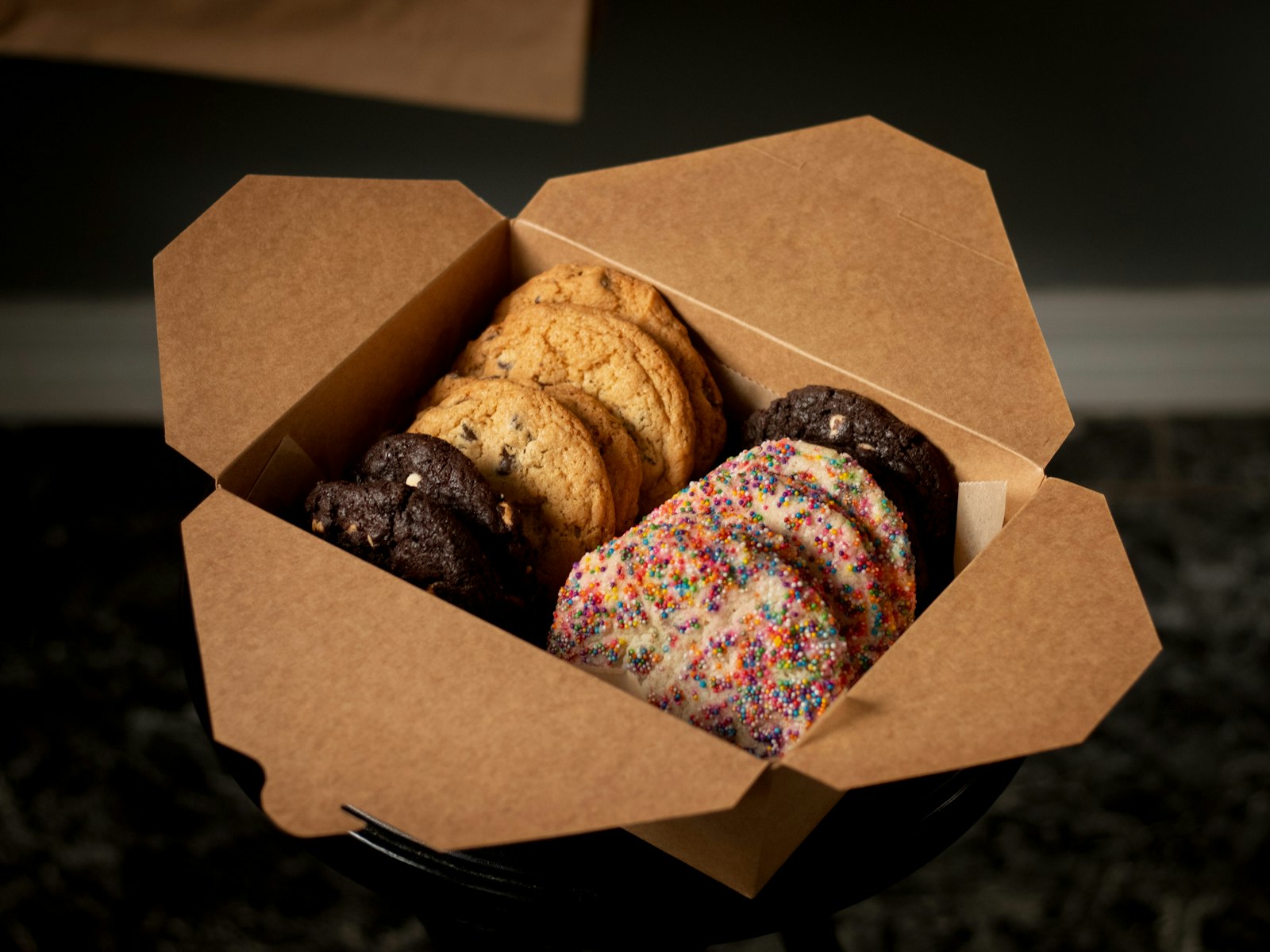
butter-lane-01-gift-box.jpg
Try it for: Order button, gifting
Photo: Conor Brown / Unsplash
Download
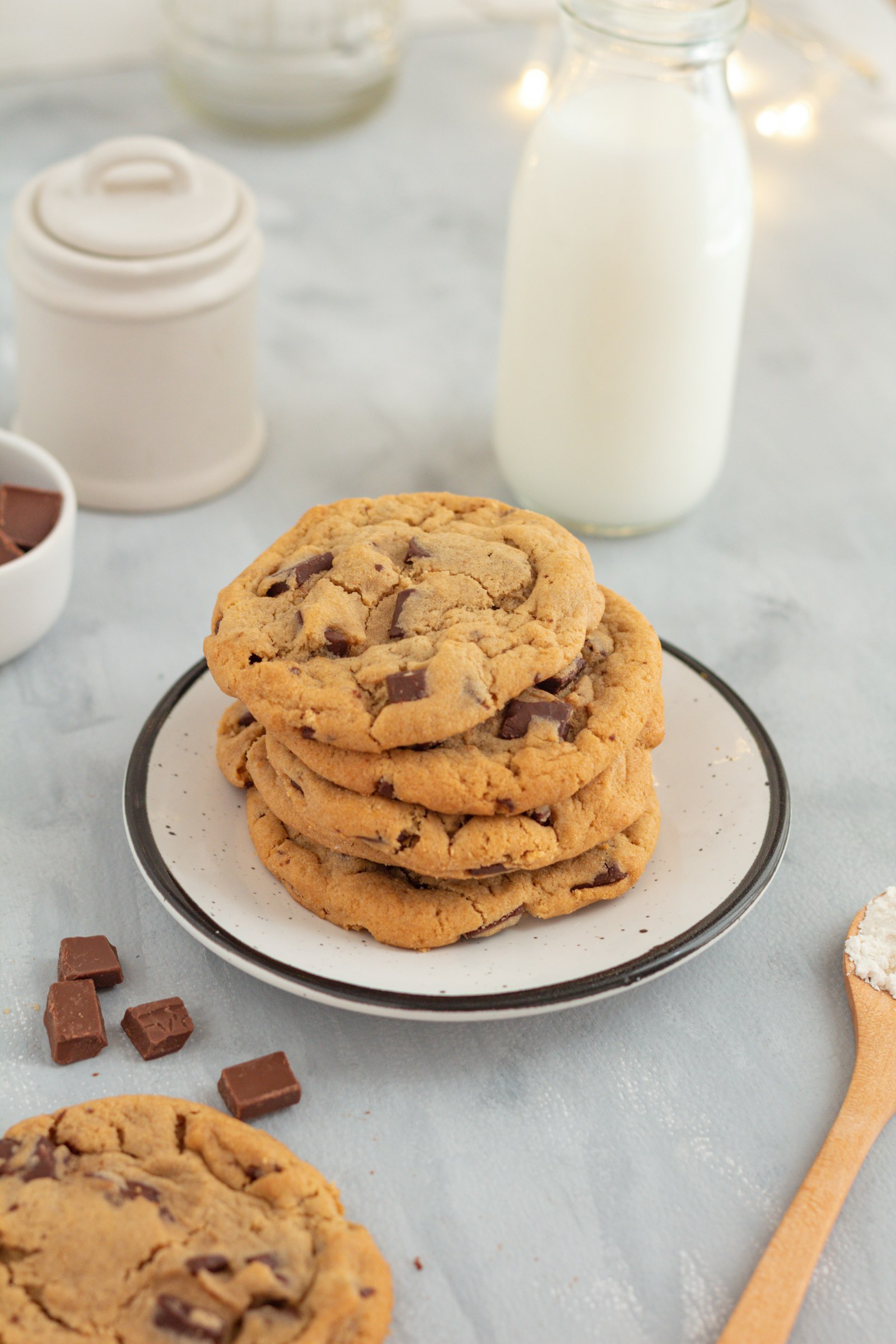
butter-lane-02-milk-stack.jpg
Try it for: Homepage hero
Photo: Fernanda Martinez / Unsplash
Download
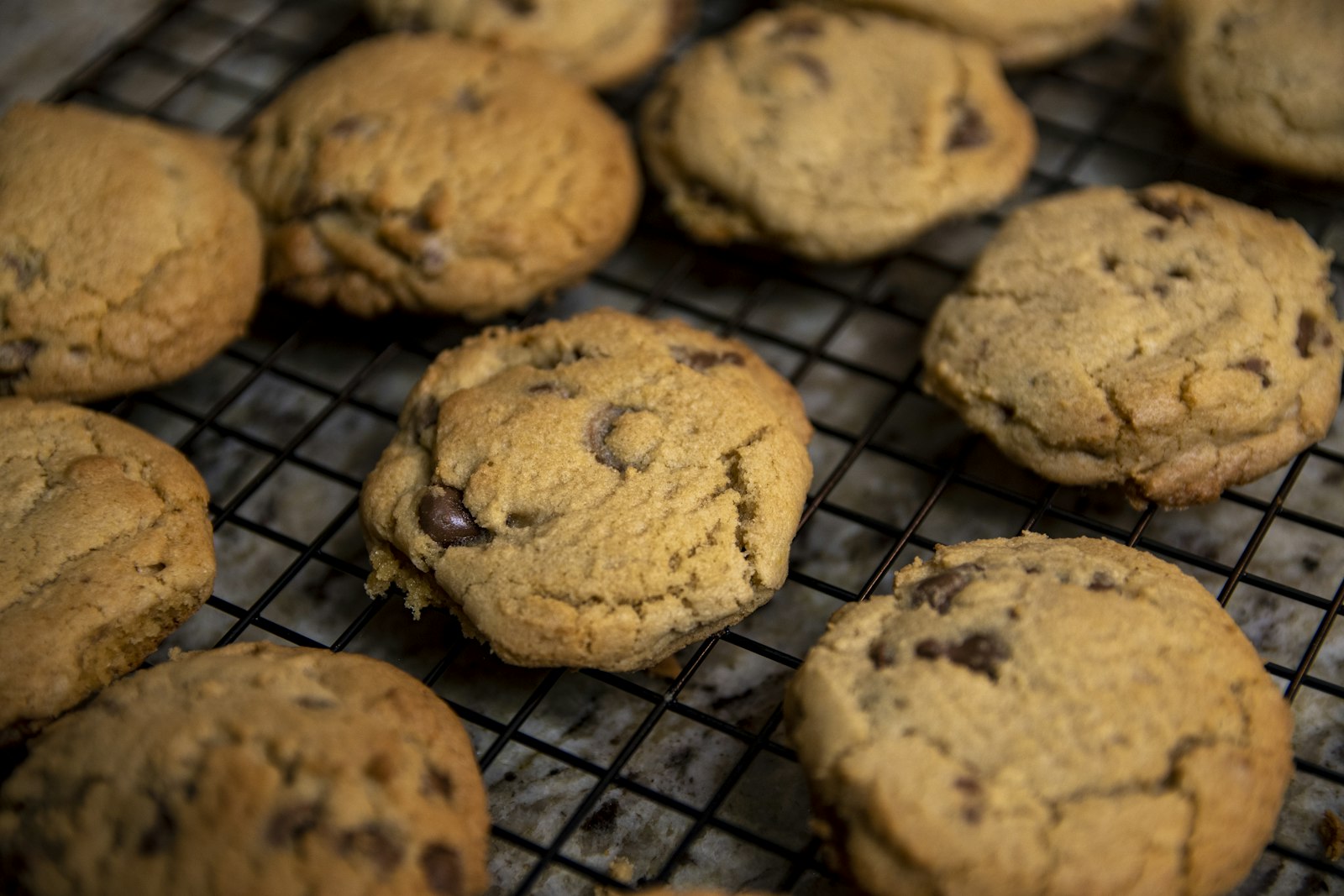
butter-lane-03-cooling-rack.jpg
Try it for: This week's bakes
Photo: Joshua Bedford / Unsplash
Download
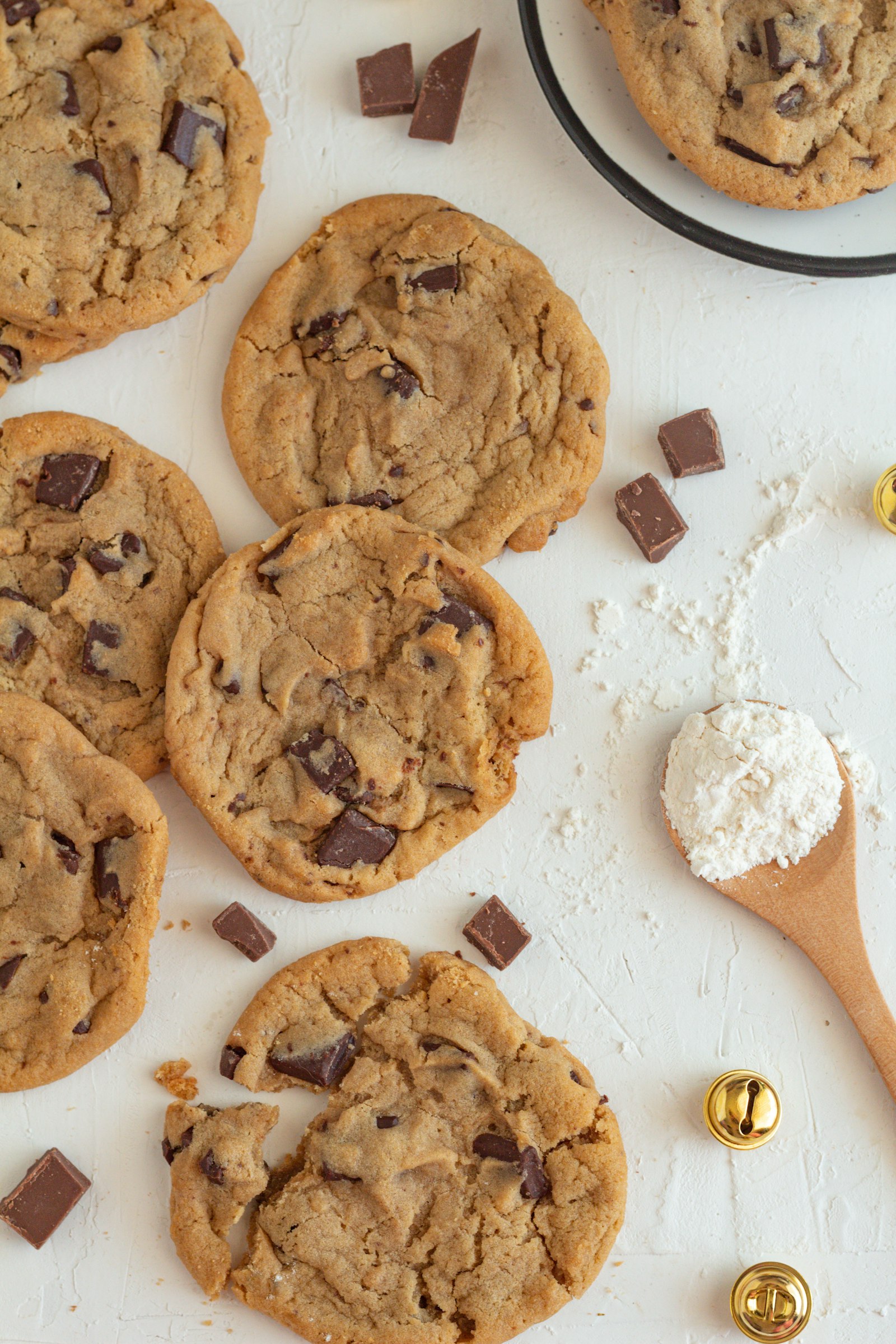
butter-lane-04-wooden-spoon.jpg
Try it for: About page
Photo: Fernanda Martinez / Unsplash
Download
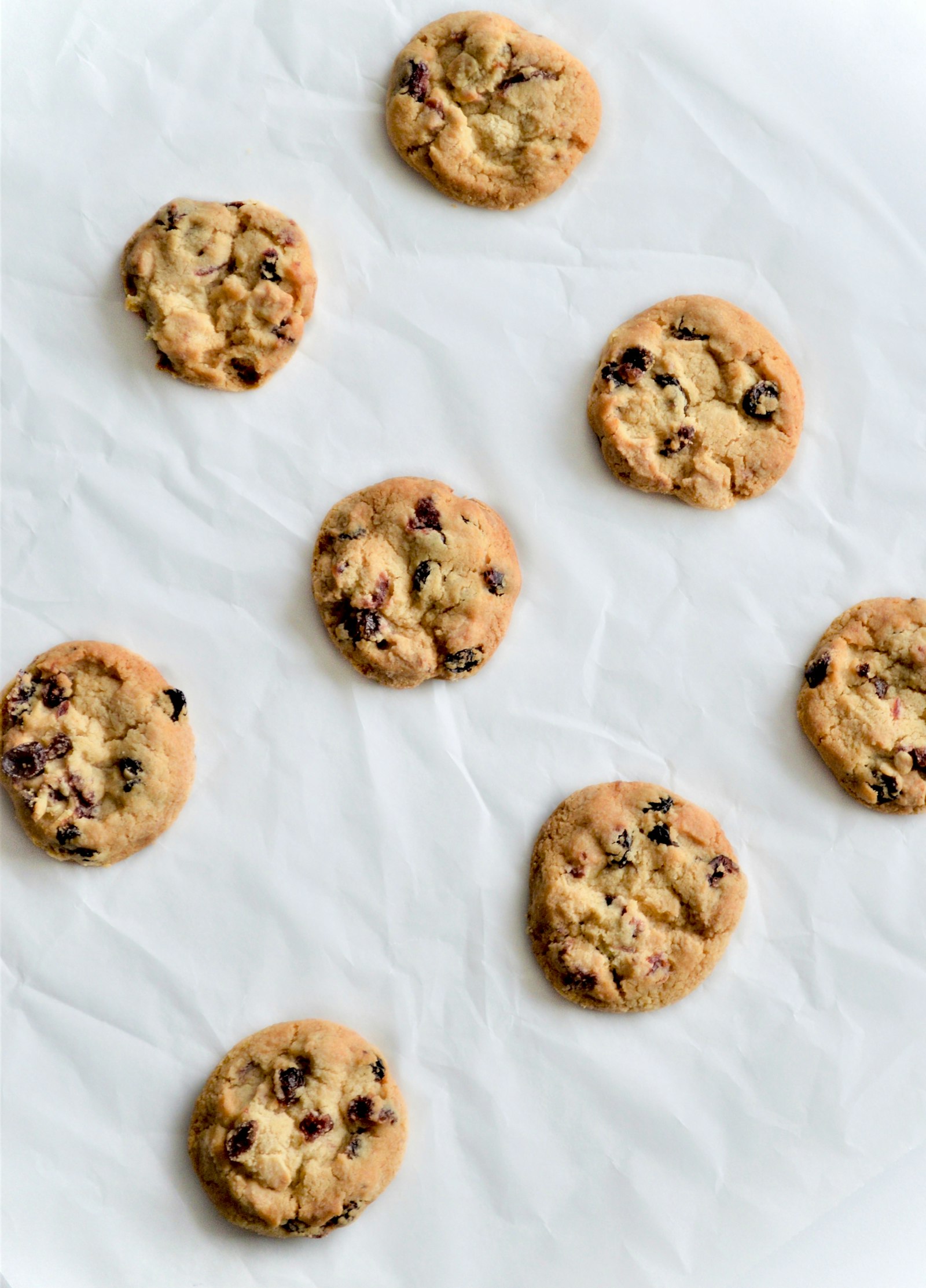
butter-lane-05-flatlay.jpg
Try it for: Menu tiles
Photo: Rumeysa Aydin / Unsplash
Download
photos.You did it